
 Print
Print
|
|
|


Specifying Which Features Are Visible
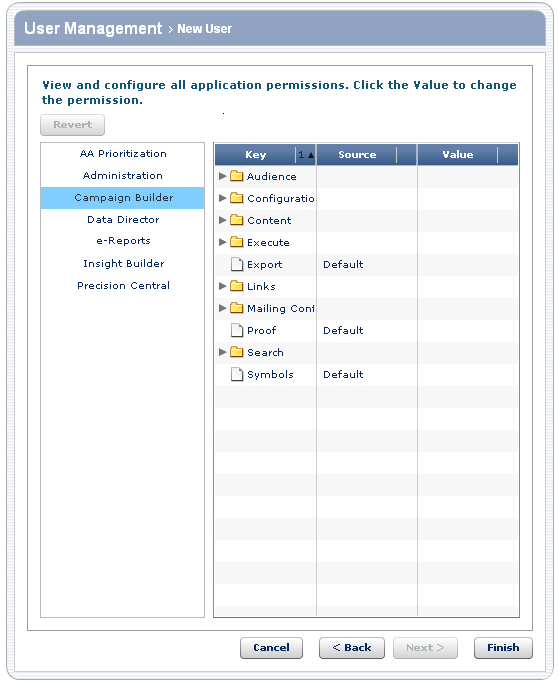
Within each application that the user can use, you can enable, disable, or specify the default value for individual features and settings.
To... |
Do this... |
Details |
Disable a feature |
|
You can only disable features for which "no" is an available value in the Value column. |
Enable a feature |
|
|
Specify the default value of a feature |
|
|
Use the default values and permissions for this user |
|
|
To specify which audience lists are visible:
- Perform the appropriate actions in the previous table.
- Do one of the following:
- Click Finish to create the user.
- Click Back to return to specifying which applications are visible to the user.
- Click Cancel to go back to the list of users without creating this user.
Print