
 Print
Print
|
|
|


Specifying Which Applications Are Visible
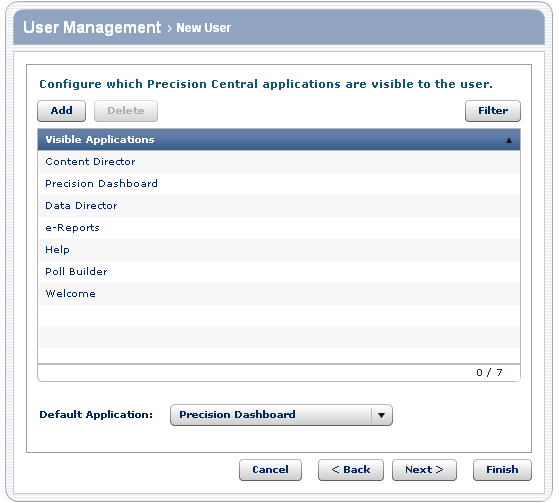
You select the applications that the user can see from the list of Visible Applications.
Note: The Filter button is visible only to Global Administrators.
To... |
Do this... |
Details |
Add an application to the list of applications that are visible to the user |
|
Only the applications that are visible to you appear in the list. This means that you cannot give a user permission to use an application that you don't have permission to use. In addition, if the default list does not include all of the possible visible applications, you can add an application to make it visible to a particular user. |
Remove an application from the list of applications that are visible to the user |
|
To select multiple applications, select one applications, and then while holding down the Ctrl key, select another application. To select multiple contiguous applications, select the first application, and then while holding down the Shift key, select the last application to select. |
Set the list of applications as the default list for subsequent users |
|
The default list includes the applications you want to be visible to most users. You can then add or remove applications to make them visible to specific users. |
Narrow the list of applications that appear in the list |
|
This list is the list of applications that are visible to the user. |
To specify which applications are visible:
- Perform the appropriate actions in the previous table.
- Do one of the following:
- Click Finish to create the user.
- Click Back to return to specifying which clients are visible to the user.
- Click Next to specify additional preferences.
- Click Cancel to go back to the list of users without creating this user.
Print